Chat Settings
Configure the general behavior and appearance of your chat widget.
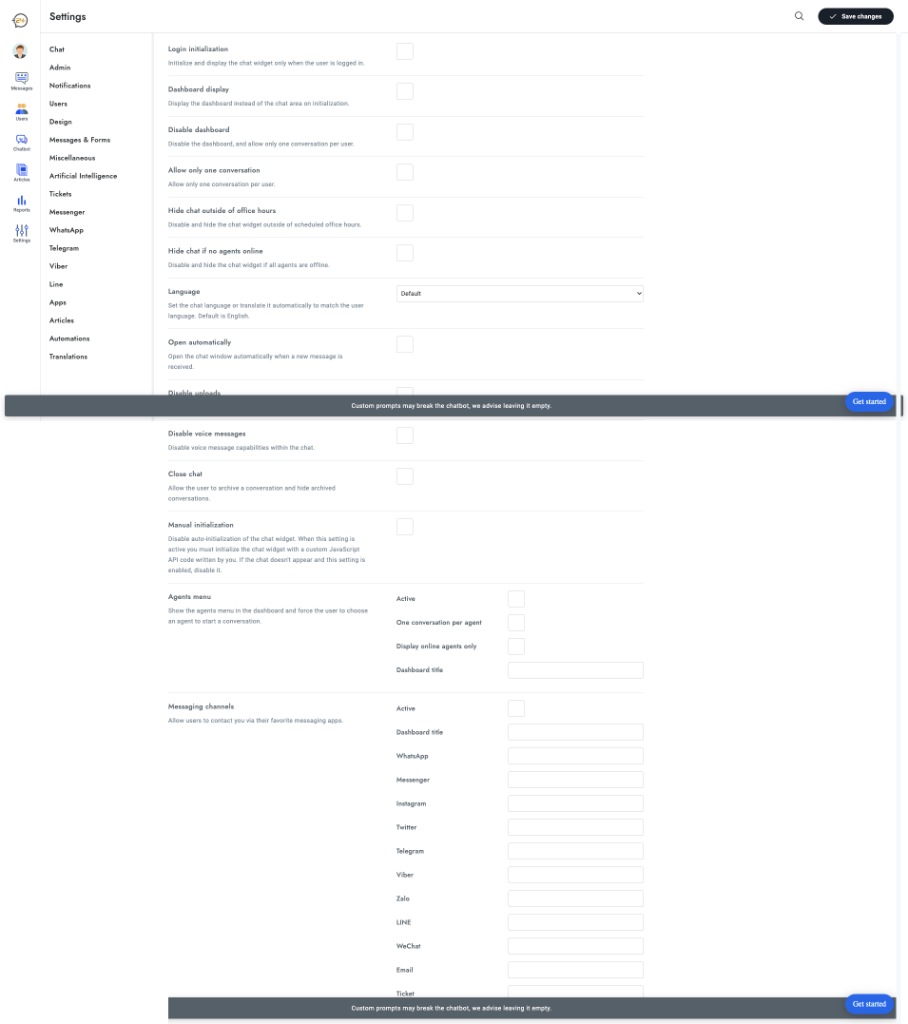
Overview
The Chat Settings section allows you to control how the chat widget behaves on your website, including initialization, visibility, and user interaction rules.
To access these settings, navigate to Settings → Chat in your dashboard.
Configuration Options
Widget Behavior
- Login initialization: Initialize and display the chat widget only when the user is logged in.
- Dashboard display: Display the dashboard (home view) instead of the chat area on initialization.
- Disable dashboard: Disable the dashboard and allow only one conversation per user.
- Allow only one conversation: Restrict users to a single active conversation.
- Hide chat outside of office hours: Automatically disable and hide the chat widget when outside of scheduled office hours.
- Hide chat if no agents online: Disable and hide the chat widget if all agents are offline.
Language & Localization
- Language: Set the default chat language or translate it automatically to match the user's browser language. Default is English.
- Translations: Manage specific text translations in the Translations section.
Automation & Interaction
- Open automatically: Open the chat window automatically when a new message is received.
- Disable uploads: Prevent users from uploading files in the chat.
- Disable voice messages: Disable voice message capabilities within the chat.
- Close chat: Allow the user to archive a conversation and hide archived conversations.
- Manual initialization: Disable auto-initialization. Use this if you want to initialize the widget via custom JavaScript API calls.
Agents Menu
Configure how agents are displayed to the user:
- Active: Enable the agents menu.
- One conversation per agent: Limit users to one conversation per specific agent.
- Display online agents only: Hide agents who are currently offline.
- Dashboard title: Custom title for the agents section.
Messaging Channels
Allow users to contact you via their favorite messaging apps directly from the chat widget. Enable the channels you want to display:
- Messenger
- Telegram
- Viber
- Zalo
- LINE
- Ticket
For each channel, you can provide a custom Dashboard title and the necessary link or ID.
tip
Remember to click "Save changes" at the top right after making any adjustments.