Account Setup
Get started with Chat24Plus in just a few minutes. This guide will walk you through creating your account and initial configuration.
Creating Your Account
Step 1: Sign Up
- Visit app.chat24plus.com
- Click on "Sign up free"
- You will see the New Account page with the following fields:
- First Name – Enter your given name
- Last Name – Enter your surname
- Email – Provide a valid email address
- Password – Create a strong password
- Repeat Password – Confirm your password
- Click "Create Account" to complete the registration
Account Overview
After logging in to your Chat24Plus dashboard, you will find a clean and organized layout that allows you to manage every part of your account from the left-side menu. Each section is designed to help you control your AI assistant, membership, billing, and profile details with ease. Below is a complete overview of what each menu item does.
📌 Navigation Menu (Left Sidebar)
Your account includes the following main sections:
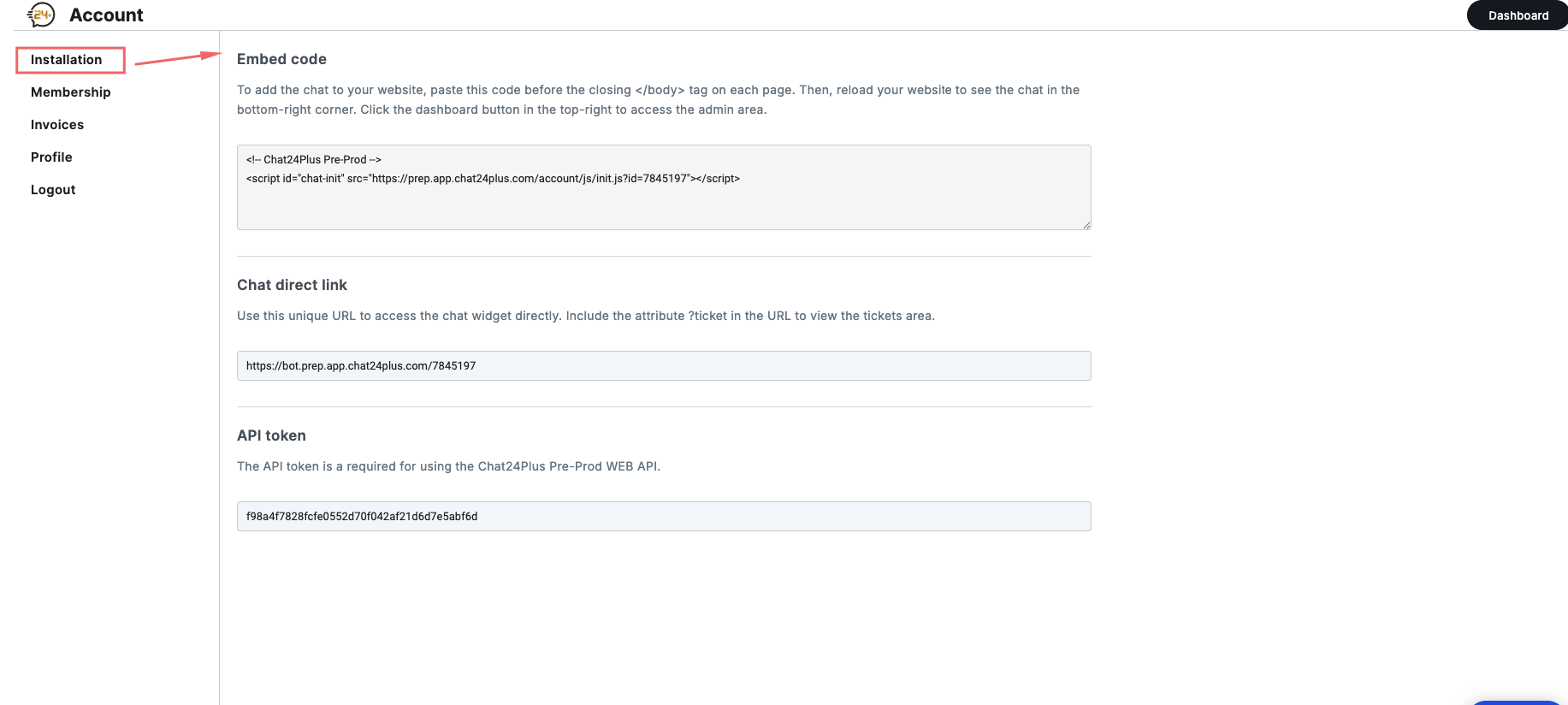
1. Installation
This section provides everything you need to install the Chat24Plus AI widget on your website.
Inside the Installation page, you will find:
- Embed Code — A script snippet that you can copy and paste into your website’s HTML to display the chat widget.
- Chat Direct Link — A unique URL your customers can use to access your chatbot directly.
- API Token — A secure key required for integrating Chat24Plus with external systems or custom applications.
This page ensures that you can easily connect the AI assistant to any website or platform.
2. Membership
The Membership section shows your current plan and usage.
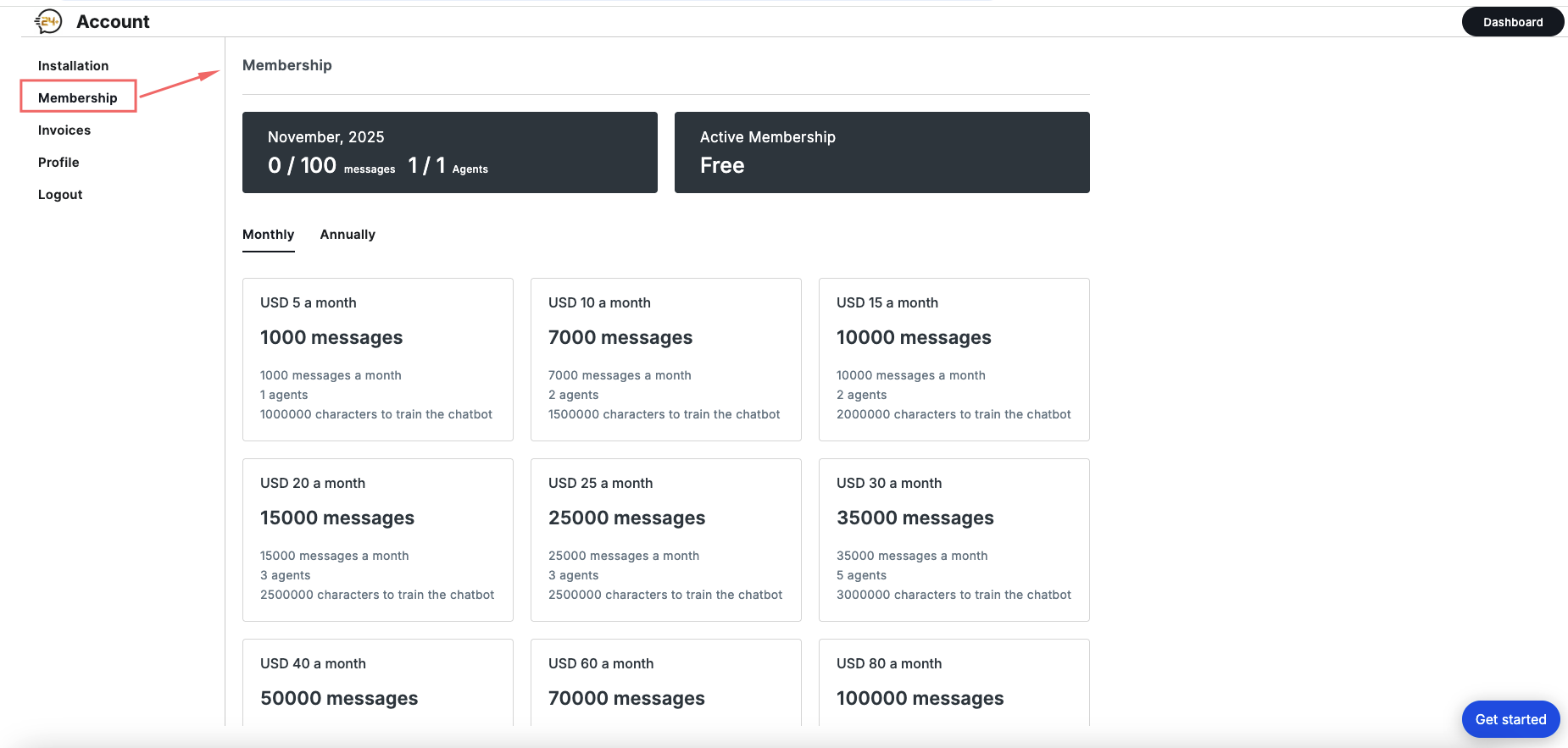 Here you can view:
- Total monthly messages available
- Number of agents allowed
- Your current plan status (Free or Paid)
- Monthly and annual subscription options
- Details for each plan such as message limits, agent limits, and chatbot training characters
This section helps you upgrade or manage your subscription when needed.
3. Invoices
The Invoices page displays your past and current billing records.
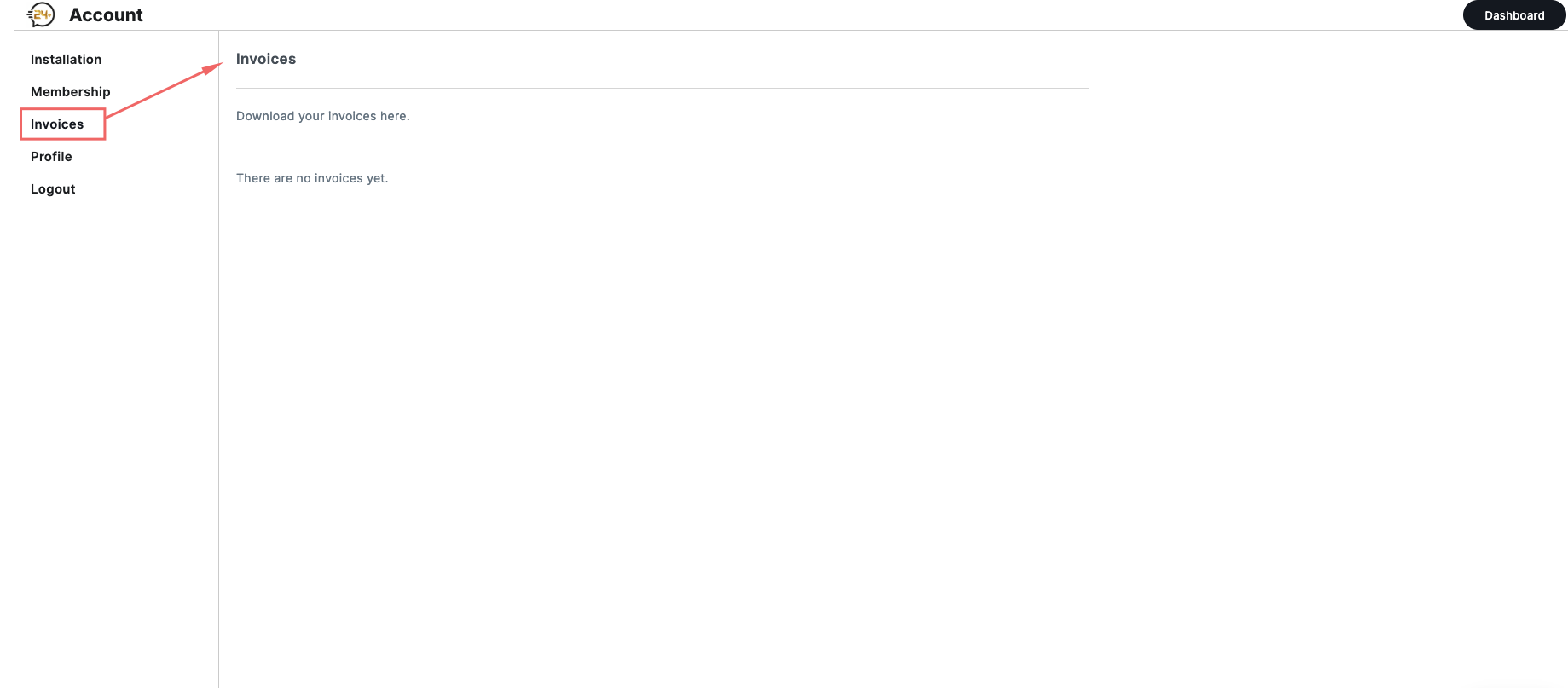
- Downloadable invoices (if available)
- A message indicating “There are no invoices yet” if you haven’t made any payments
This allows you to keep track of your financial records and billing history.
4. Profile
The Profile section allows you to manage your personal and business information.
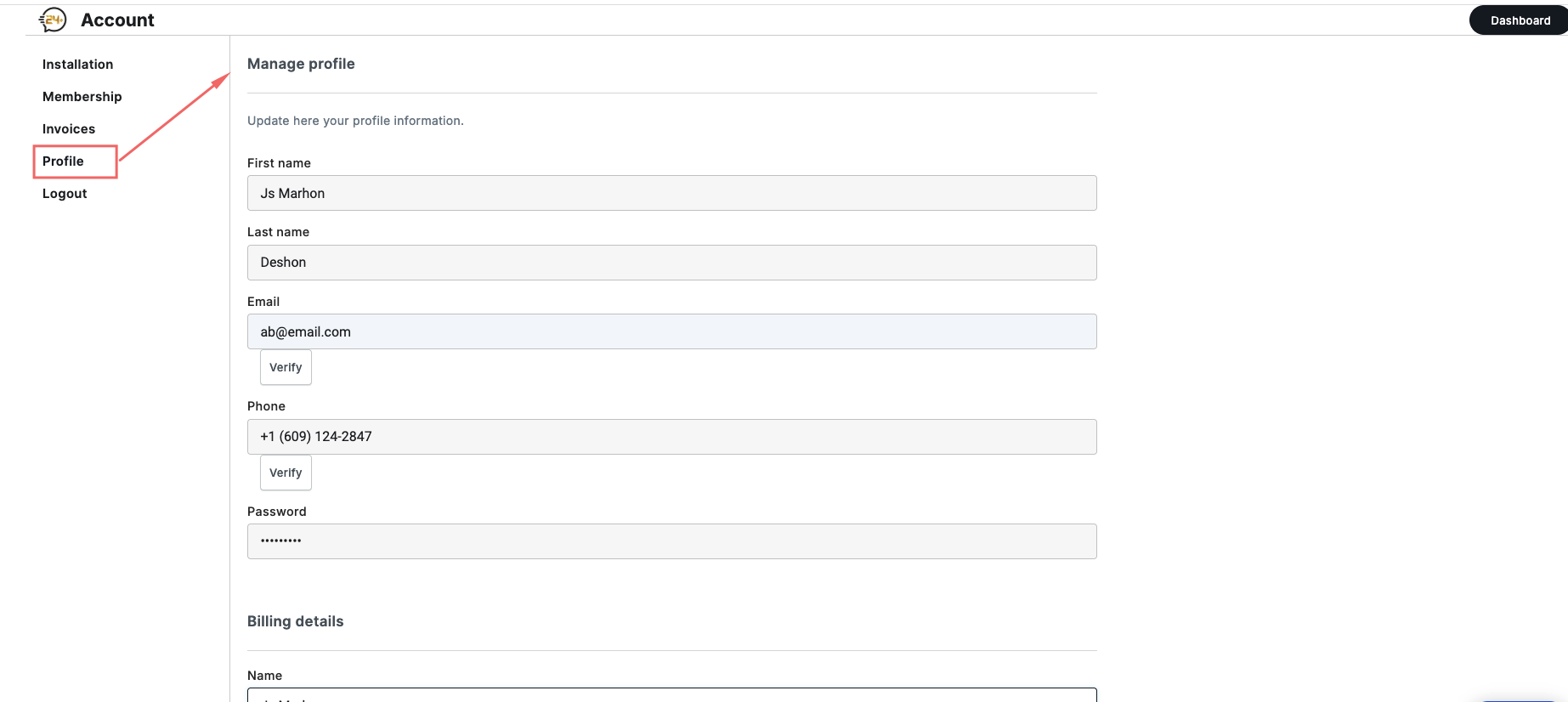 Here you can update:
- First Name & Last Name
- Email (with verification option)
- Phone number
- Password
- Billing Details, including:
- Name
- Address
- Postal Code
- City
- Country
- Tax ID
This section ensures your account information is accurate and secure.
5. Refer a Friend
This section allows you to earn commission by sharing your referral link.
You can find:
- Your referral link
- Your current earnings (shown in USD)
- Payment information setup (e.g., PayPal email)
When someone purchases a plan using your link, you earn a 50% commission on their membership purchase or renewal.
6. Logout
Clicking Logout will safely sign you out of your Chat24Plus account.
Summary
The Account Overview page is designed to give you complete control over your Chat24Plus experience.
From installation and membership to profile settings and referrals, everything is organized in one place for convenience.
Use the left-side navigation to explore each section as you set up and manage your AI assistant.
Need Help?
- Visit our FAQ
- Email support: [email protected]
- Use the live chat on chat24plus.com
Next: Set up your AI Chatbot