AI Chatbot Setup
Train your AI chatbot to understand your business and provide accurate, helpful responses to customer inquiries 24/7.
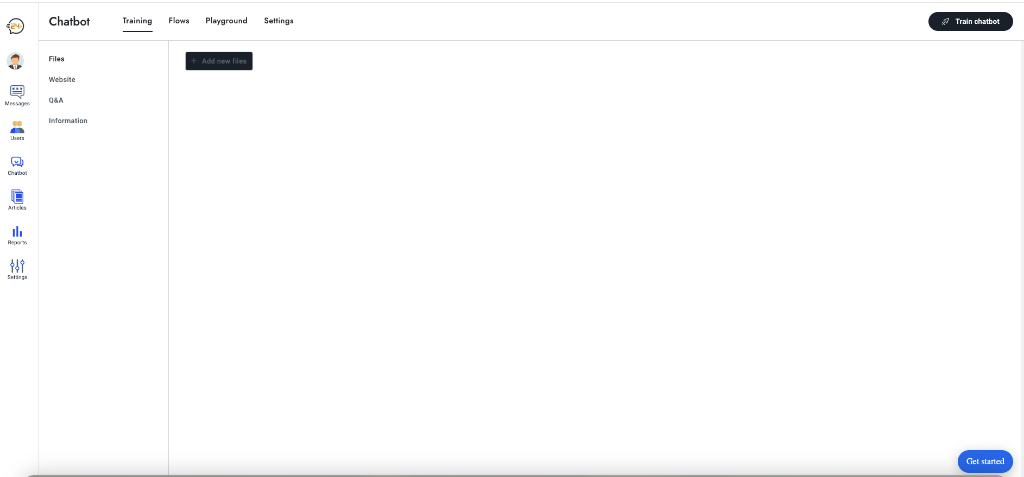
Overview
The Chatbot section is your command center for building and managing your AI agent. It consists of four main areas, accessible via the top tabs:
- Training: Teach your chatbot using files, website content, and Q&A pairs.
- Flows: Create visual conversation paths for specific scenarios.
- Playground: Test your chatbot in real-time to verify its responses.
- Settings: Configure personality, behavior, and preferences.
1. Training 🧠
The Training tab is where you provide the knowledge base for your AI. The sidebar allows you to manage different data sources:
Files 📄
Upload files containing your business information, FAQs, or product documentation.
Supported File Types:
- PDF (.pdf)
- Microsoft Word (.doc, .docx)
- Plain Text (.txt)
- Markdown (.md)
- CSV (.csv)
How to Upload:
- Select Files from the sidebar.
- Click "Add new files".
- Select one or multiple files (up to 10 files at once).
- Wait for processing (typically 1-5 minutes).
File Size Limits:
- Free Plan: 5 MB per file
- Starter Plan: 10 MB per file
- Business Plan: 25 MB per file
Website 🌐
Automatically extract information from your website.
How to Crawl:
- Select Website from the sidebar.
- Click "Crawl Website".
- Enter your website URL (e.g.,
https://yoursite.com). - Configure options (Max Pages, Depth).
- Click "Start Crawling".
Crawling Limits:
- Free Plan: Up to 50 pages
- Starter Plan: Up to 200 pages
- Business Plan: Up to 1,000 pages
Q&A 💬
Manually add specific question-answer pairs for precise control. This is best for:
- Specific company policies
- Pricing information
- Custom greetings
- Correcting specific bot behaviors
How to Add:
- Select Q&A from the sidebar.
- Click "Add New Q&A".
- Enter the Question (user's query) and the Answer (bot's response).
- Save the pair.
Information ℹ️
Add general text context about your business that doesn't fit into files or Q&A. This can include your business description, mission, or general instructions for the AI.
3. Playground 🎮
The Playground is your testing environment.
- Test Real-time: Chat with your bot exactly as a user would.
- Debug: See how the bot responds to different phrasings.
- Refine: If an answer is incorrect, update your Training data or Q&A and test again here.
4. Settings ⚙️
Configure the behavior and appearance of your chatbot.
For detailed configuration options, please refer to the Chat Settings guide.
Next: Install the Chat Widget