Dashboard Overview
After logging in to your Chat24Plus dashboard, you will see a simple and organized interface designed to help you manage conversations, chatbot training, users, articles, reports, and system settings. The left sidebar menu contains all the main tools you will use. Below is a complete explanation of each section so that clients can easily understand how the dashboard works.
📌 Navigation Menu (Left Sidebar)
The left-hand menu includes the following sections:
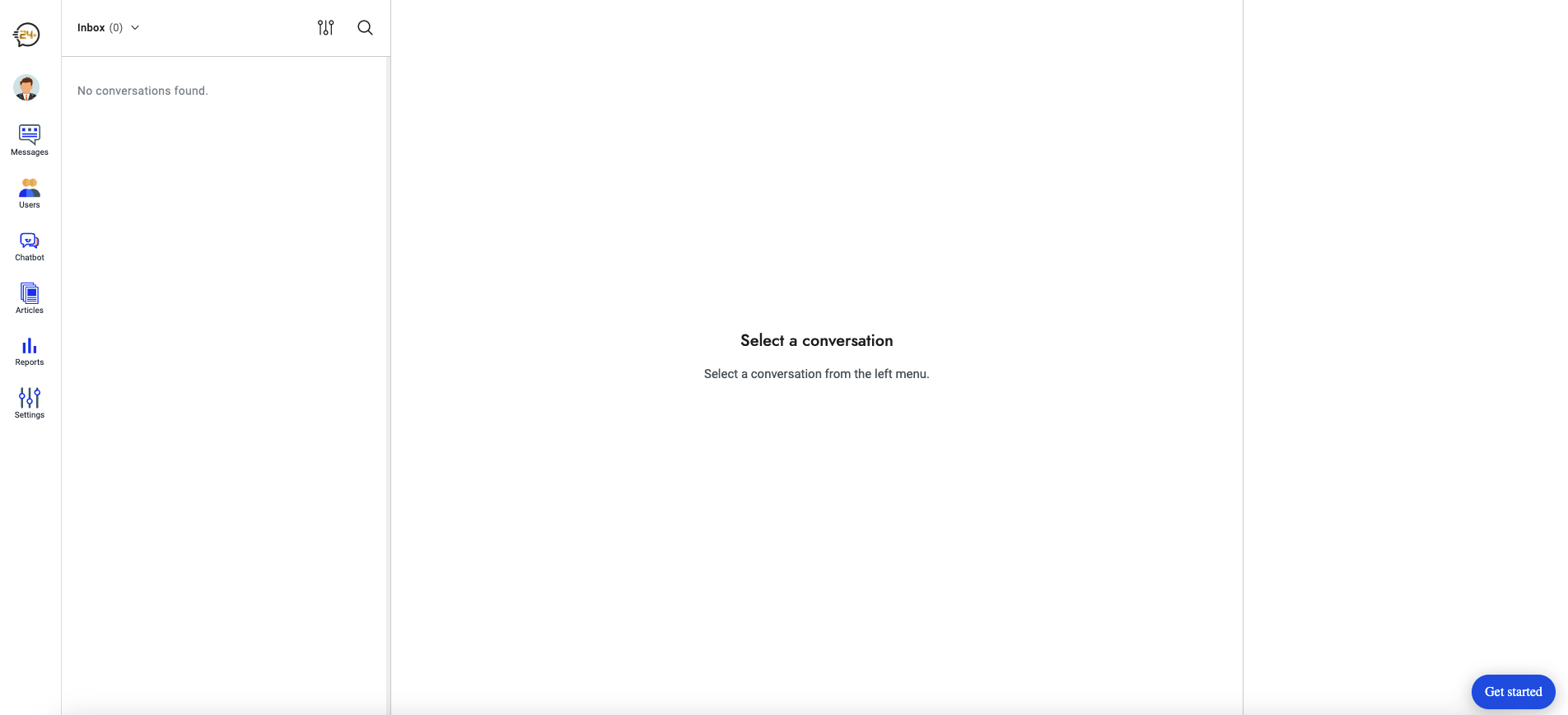
1. Message
This section shows all incoming conversations from your website or chat widget.
Here you can:
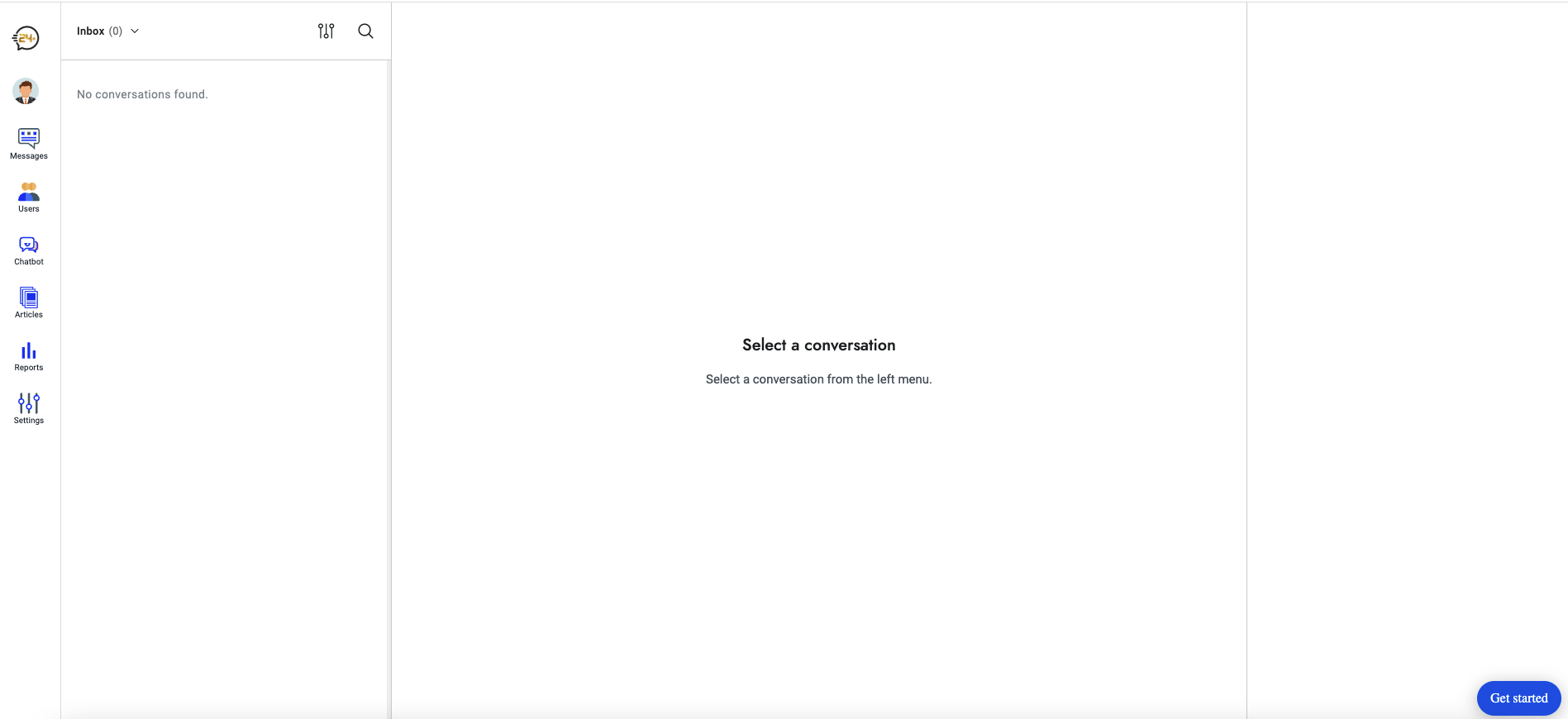
- View all conversations in your inbox
- Respond to customer messages
- Manage open and closed chats
- See real-time visitor interactions
If no messages are available yet, you will see “No conversations found.”
2. Users
The Users section allows you to view and manage all contacts who interacted with your chatbot.
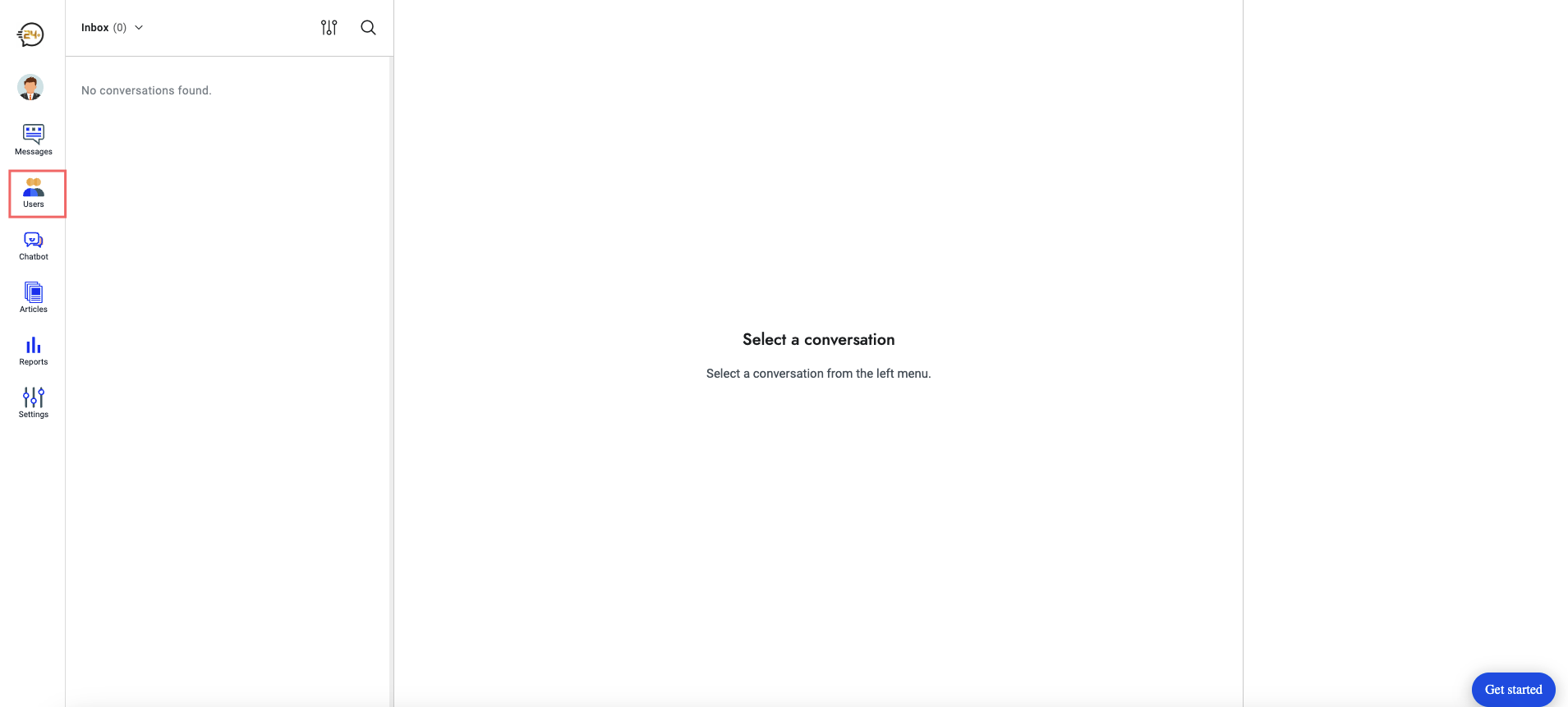 Inside this section you will find:
- All
- Users
- Leads – People who shared contact details
- Visitors – Anonymous users
- Online
- Agents & Admins – Members with access to your system
You can also view:
- Full name
- User type (Lead, Visitor, Agent, etc.)
- Last activity time
- Registration date
You may also add new users manually.
3. Chatbot
This is where you create, train, and configure your chatbot.
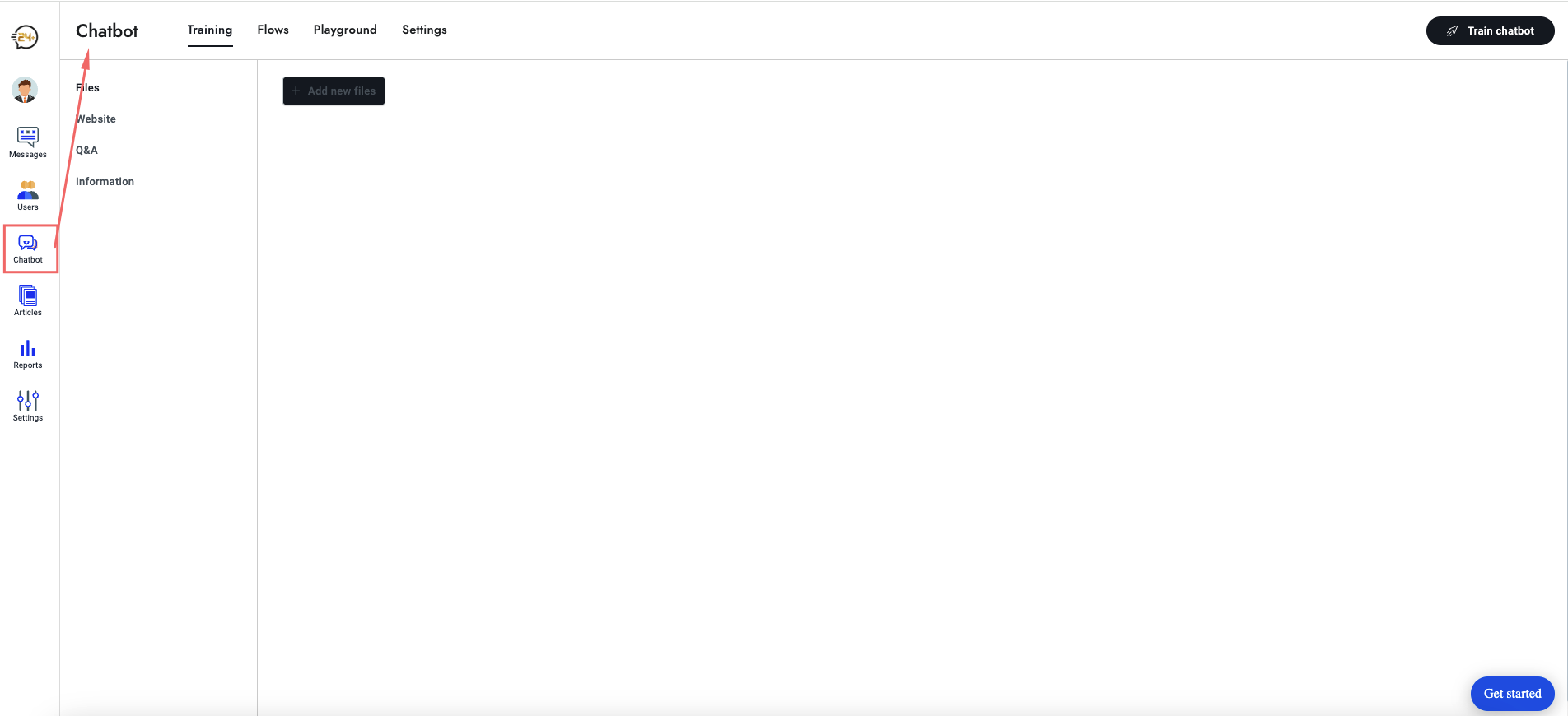
The chatbot dashboard includes:
- Training
- Upload files
- Add website URLs
- Create Q&A
- Add custom information
- Flows – Build conversation workflows
- Playground – Test your chatbot’s responses
- Settings – Adjust chatbot behavior and options
Use the "Train chatbot" button to update AI knowledge.
4. Articles
This is your Knowledge Base section.
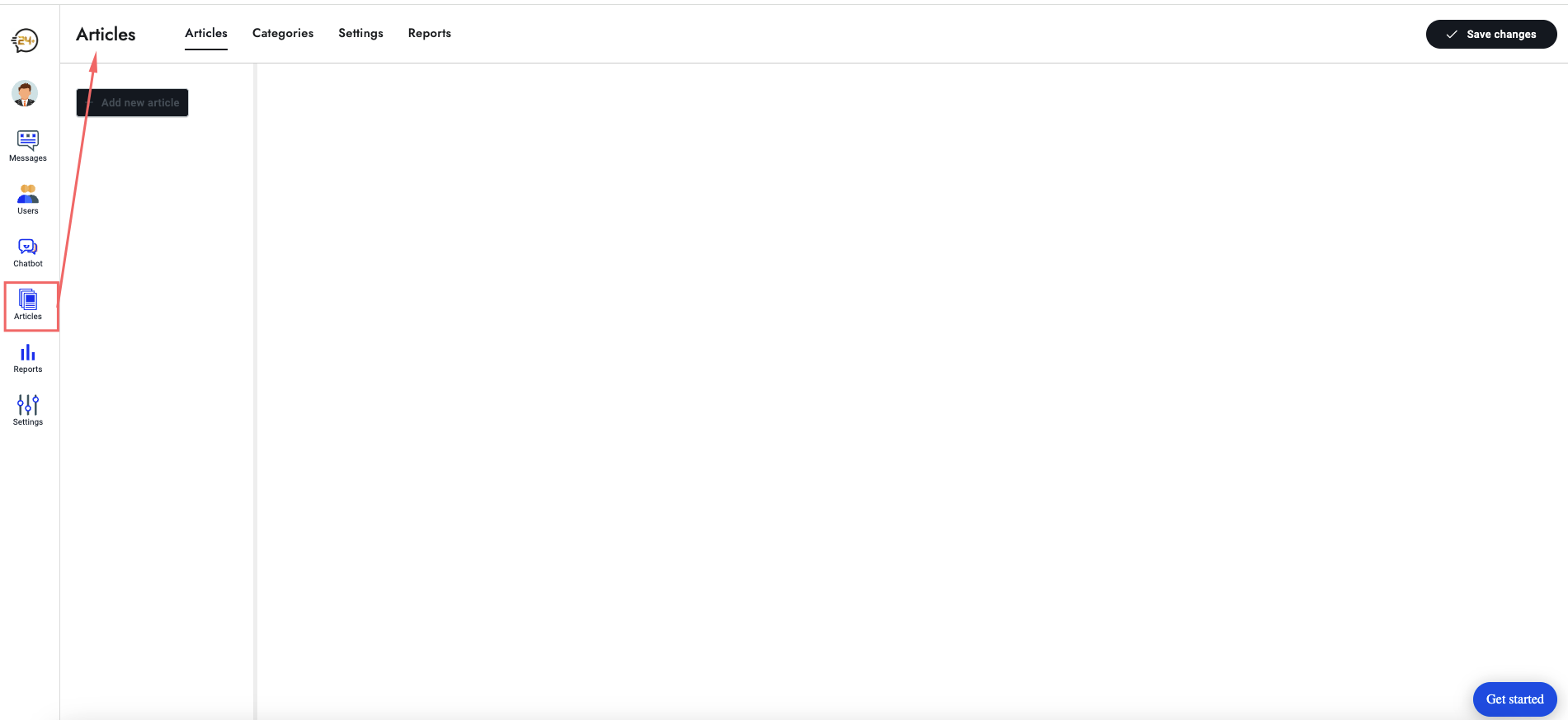
Here you can:
- Add new help articles
- Organize articles into categories
- Configure article settings
- View article report analytics
This helps your AI assistant answer customer questions using your content.
5. Reports
The Reports section provides detailed analytics about your system activity.
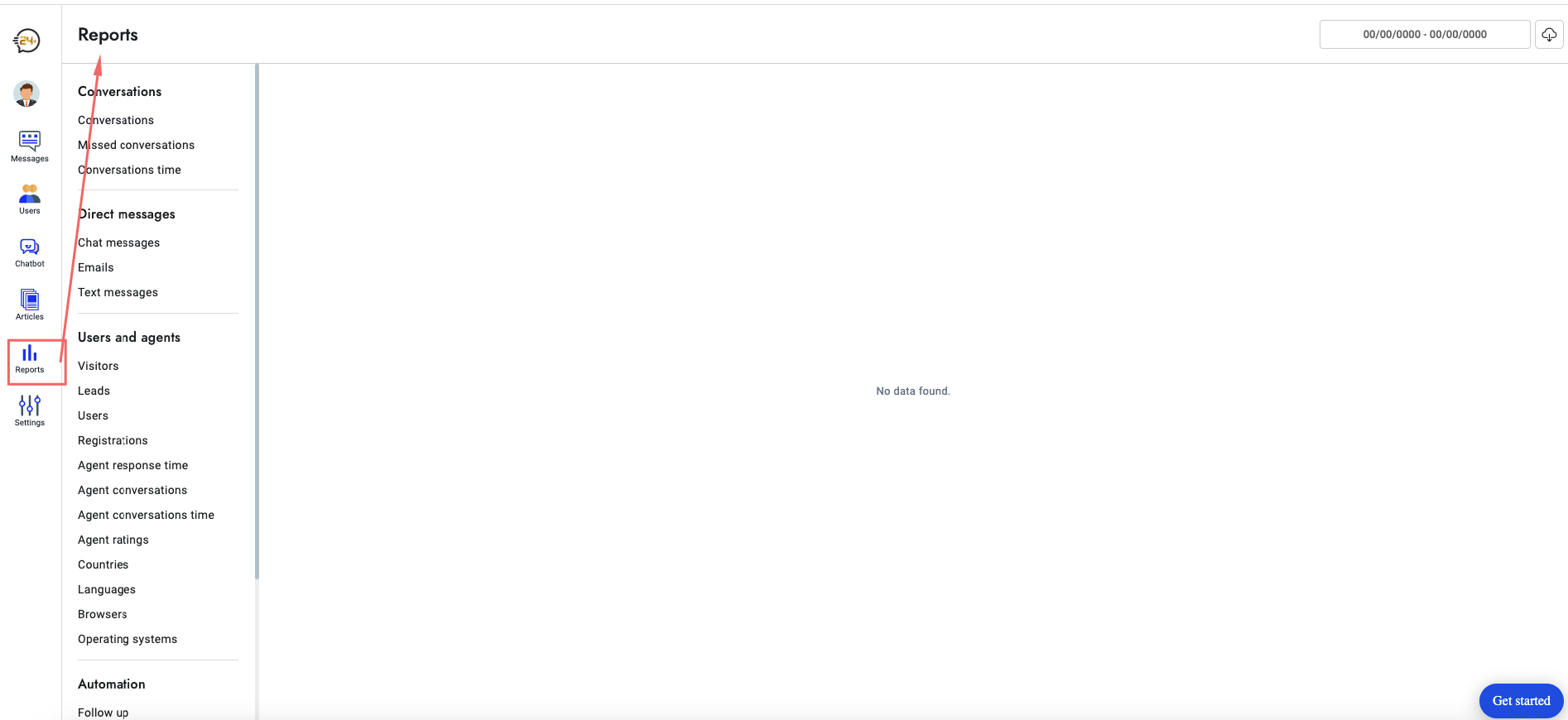
You can view reports such as:
Conversations
- Conversations
- Missed conversations
- Conversation time
Direct Messages
- Chat messages
- Emails
- Text messages
Users & Agents
- Visitors
- Leads
- Users
- Registrations
- Agent response time
- Agent conversation
- Agent conversation time
- Agent ratings
- Countries
- Languages
- Browsers
- Operating systems
Automation
- Follow up
- Message automations
- Email automations
These reports help you understand customer behavior and system usage.
Articles
-
Searches
-
Article views
-
Article views by article
6. Settings
This is where you control system-wide preferences.
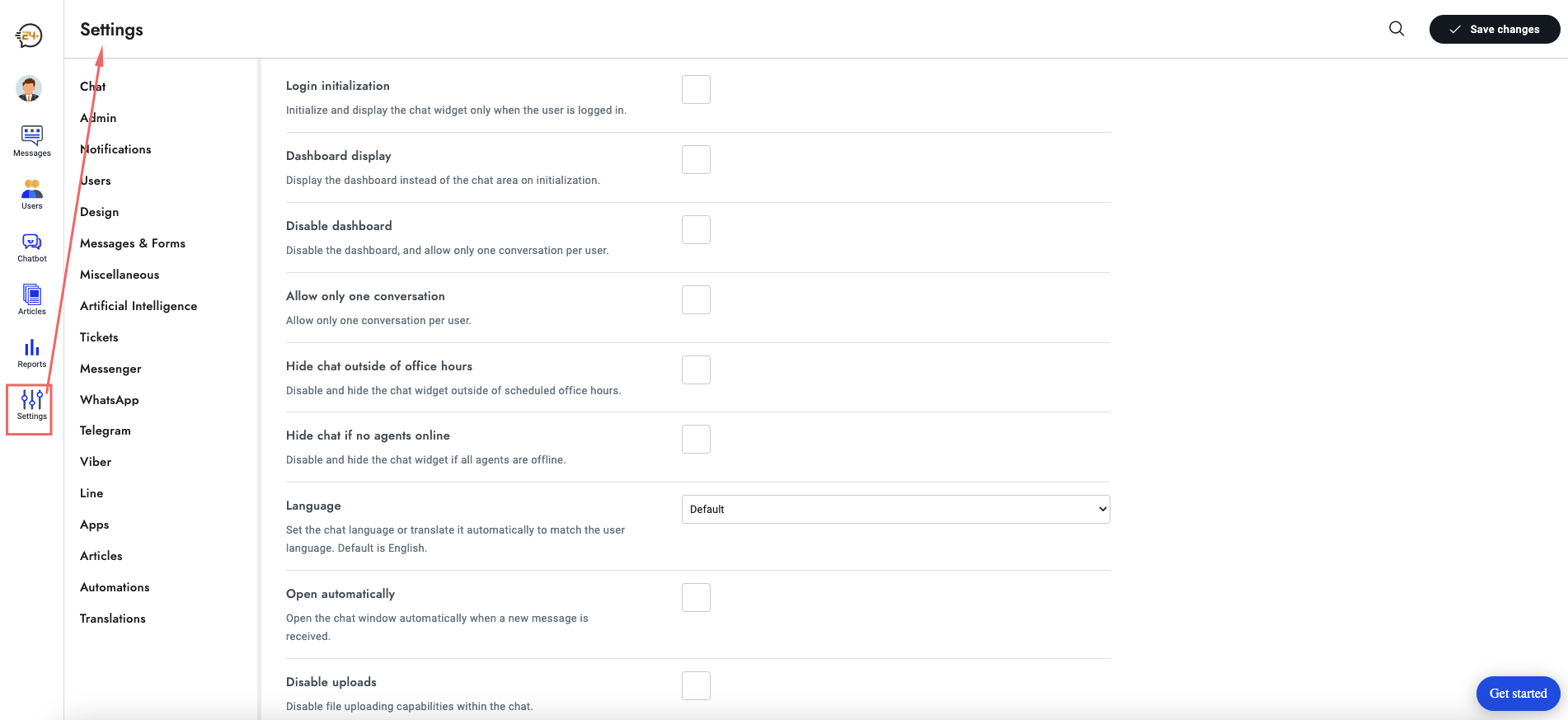
The Settings panel includes options such as:
- Chat
- Admin
- Notifications
- Users
- Design
- Messages & Forms
- Miscellaneous
- Artificial Intelligence
- Tickets
- Messenger
- Telegram
- Viber
- Line
- Apps
- Articles
- Automations
- Translations
Make sure to click "Save changes" after updating any setting.
Summary
The Chat24Plus Dashboard is designed to give you complete control over your AI system.
From managing conversations and training your chatbot to reviewing analytics and configuring settings, every tool is organized in the left menu for easy access.
This Dashboard Overview helps clients understand:
- Where to find each tool
- What each section does
- How to navigate the platform effectively
You can now continue exploring each feature to build your full customer support system with Chat24Plus.
Need Help?
- Visit our FAQ
- Email support: [email protected]
- Use the live chat on chat24plus.com
Next: Set up your AI Chatbot